Multi-Factor Authentication (MFA) adds an extra layer of protection to your account, making it more secure by requiring two or more verification steps.
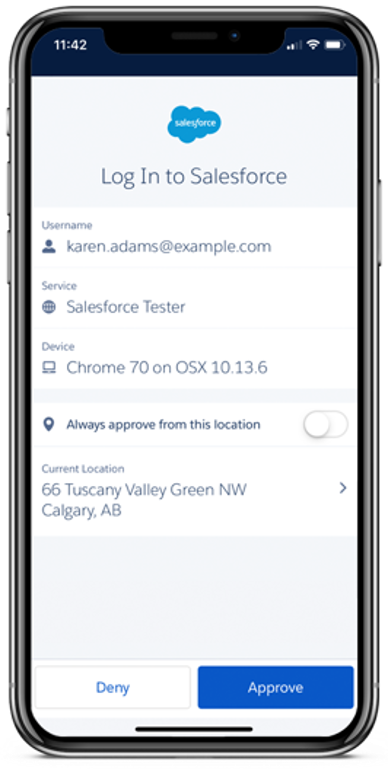
Upon logging into the platform, you will be prompted to provide a secondary authentication via the Salesforce Authenticator app to log into your ASM International account.
Benefits of MFA
Implementing Multi-Factor Authentication will benefit you in several ways, including:
Enhanced Security: MFA significantly reduces the risk of unauthorized access by requiring both your password and a secondary authentication method, such as a code sent to your mobile device. This offers you peace of mind that your personal and professional information is protected against any cyber threats.
Easy To Use: Once set up, MFA is quick and easy to use. The extra step takes only a few seconds, ensuring you can securely access the digital resources you rely on without unnecessary delays.
Compliance and Trust: By adopting MFA, ASM International continues to meet the highest standards for data protection, reinforcing our commitment to safeguarding your information and maintaining the integrity of our platforms for our valued members in the materials community.
Instructions for MFA Use
Downloading and Connecting the Salesforce Authenticator App
Step 1:
Install the Salesforce Authenticator App on your mobile device.
Step 2:
Upon logging into your ASM account, you may be prompted to verify your identity with a one-time passcode via email or text message.
Step 3:
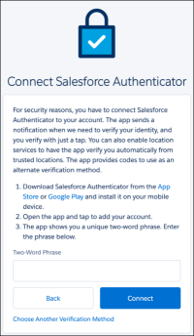
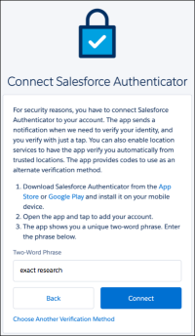
The screen to register your Salesforce Authenticator should display automatically.
Step 4:
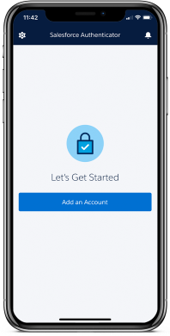
On your mobile device, open Salesforce Authenticator App and click Add an Account.
Step 5:
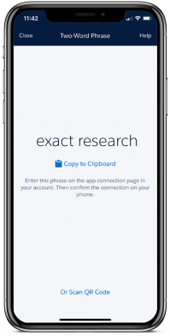
The mobile app screen will display a two-word phrase
Step 6:
On the device being used to log into the ASM account, enter the phrase in the “Two-Word Phrase” field. Then click Connect.
Step 7:
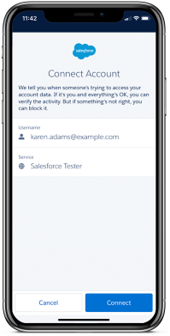
The Salesforce Authenticator app should now be connected to your ASM account. You will b eprompted to confirm the connection details in the mobile app.
Step 8:
In the Salesforce Authenticator app, verify that the connection details are correct, then click Connect.
Logging In and Authenticating On Ongoing Basis
Step 1:
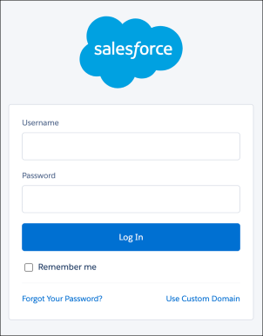
Within the ASM platform, you will be prompted to log in. Enter your ASM username and password.
Step 2:
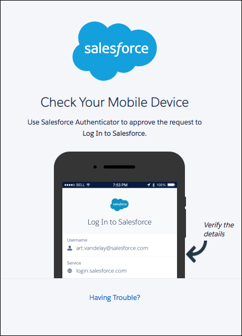
Salesforce will prompt you to use the Salesforce Authenticator app to verify your identity.
Step 3:
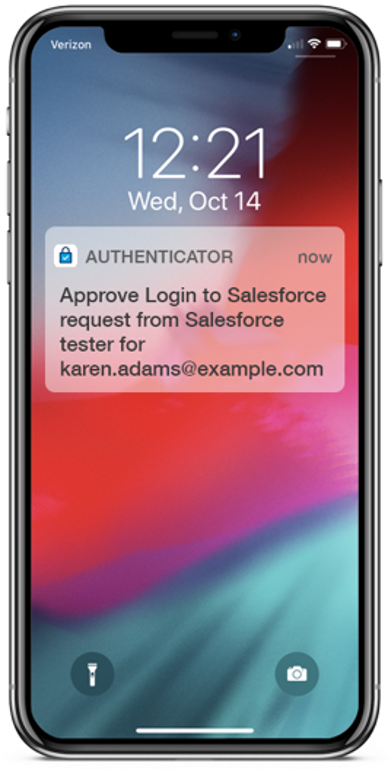
On your mobile device, you will receive a push notification from the Salesforce Authenticator app. Click on the notification.
Step 4:
In the Salesforce Authenticator app, verify that the login request contains your correct information. Then click Approve.
You will now successfully be logged into your ASM account!
Need Assistance?
Our support team is ready to help you with the MFA setup or answer any questions you may have. Please don’t hesitate to reach out to our Digital Products Team if you have any questions or concerns.